# Zoom
Zoom (opens new window) is the leader in modern enterprise video communications, with an easy, reliable cloud platform for video and audio conferencing, collaboration, chat, and webinars across mobile devices, desktops, telephones, and room systems.
# How to connect to Zoom on Workato
The Zoom connector uses OAuth 2.0 to connect to Zoom
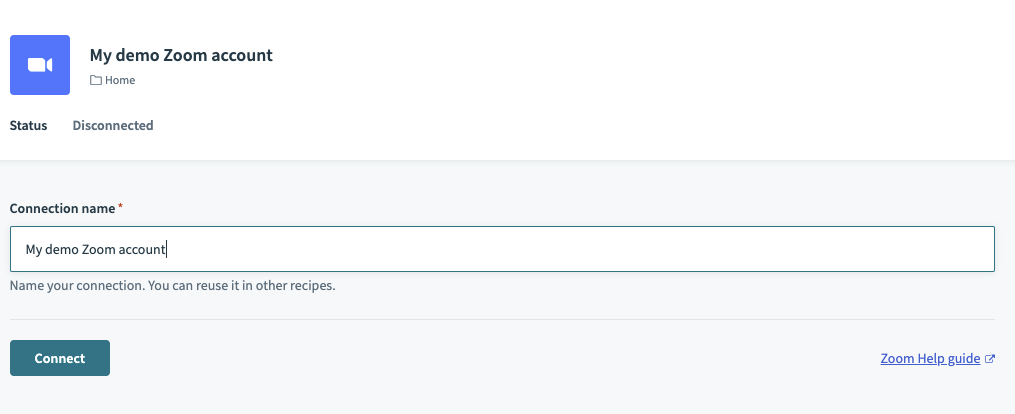
| Field | Description |
|---|---|
| Connection name | Give this Zoom connection a unique name that identifies which Zoom instance it is connected to. |
# Permissions required to connect
To authorize Workato to your Zoom instance, we recommend provisioning a API user account for your Workato connection. This allows you to provision this API user to a Role which has the minimum amount of permissions required. Alternatively, you can either use your Zoom Owner or Admin account. Admin accounts may not have the required permissions if Admin permissions have been adjusted.
For a Provisioned API user for Workato, we require the following setup:
| Attribute | Value |
|---|---|
| This could be an email alias which your organization uses for IT administration. This must be a valid email for you to setup this user. | |
| User Type | Basic |
| Department | N/A |
| Job Title | N/A |
| Location | N/A |
| User Group | N/A |
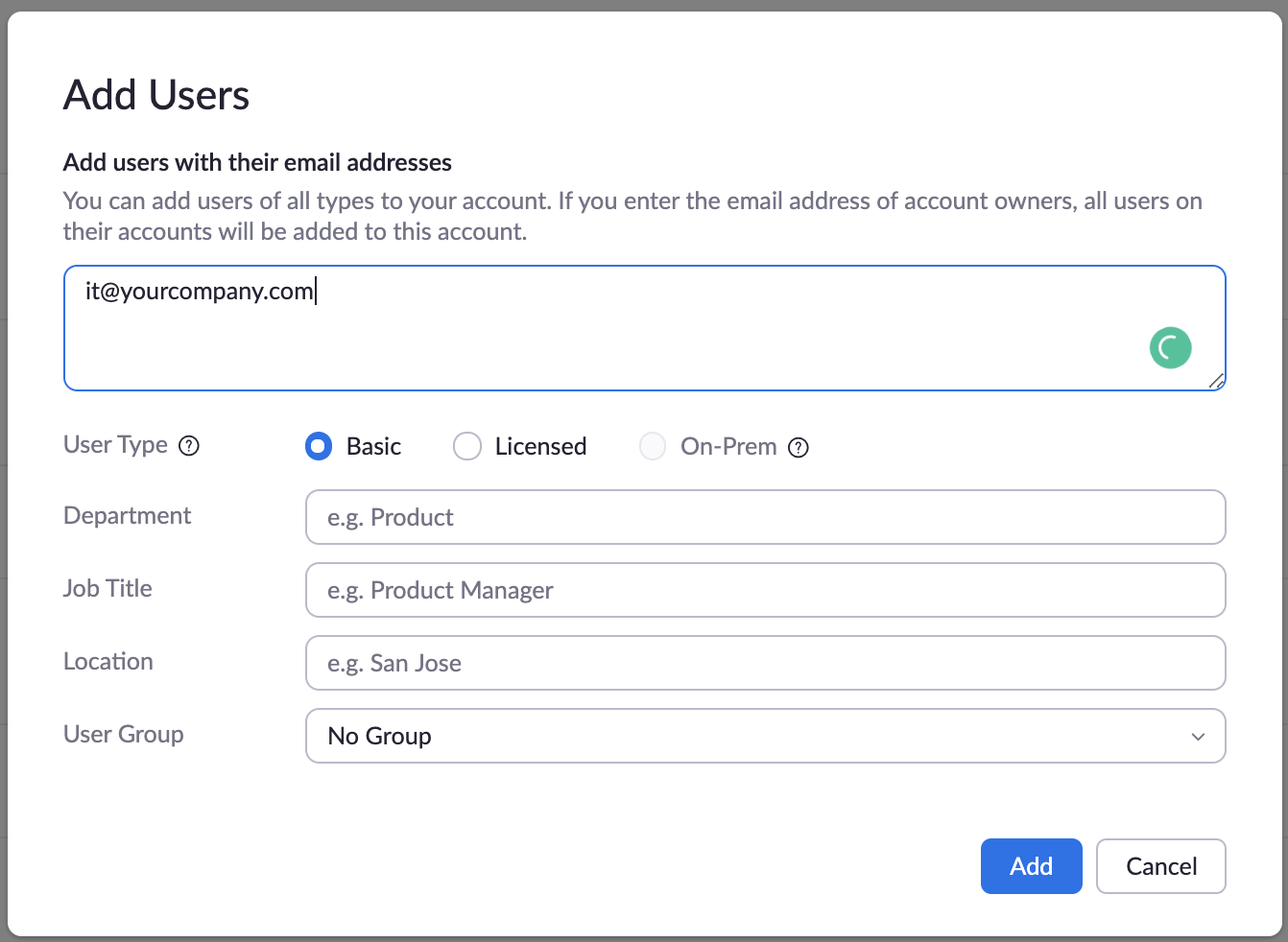
Create the following role in Zoom and assign it to your newly created API user.
| Attribute | Value |
|---|---|
| Users | View, Edit |
| Role management | View, Edit |
| Groups | View, Edit |
| Recording management | View, Edit |
| Zoom rooms | View, Edit |
| Meetings | View |
| Webinars | View |
| Usage reports | View |
| Schedule tracking fields | View, Edit |
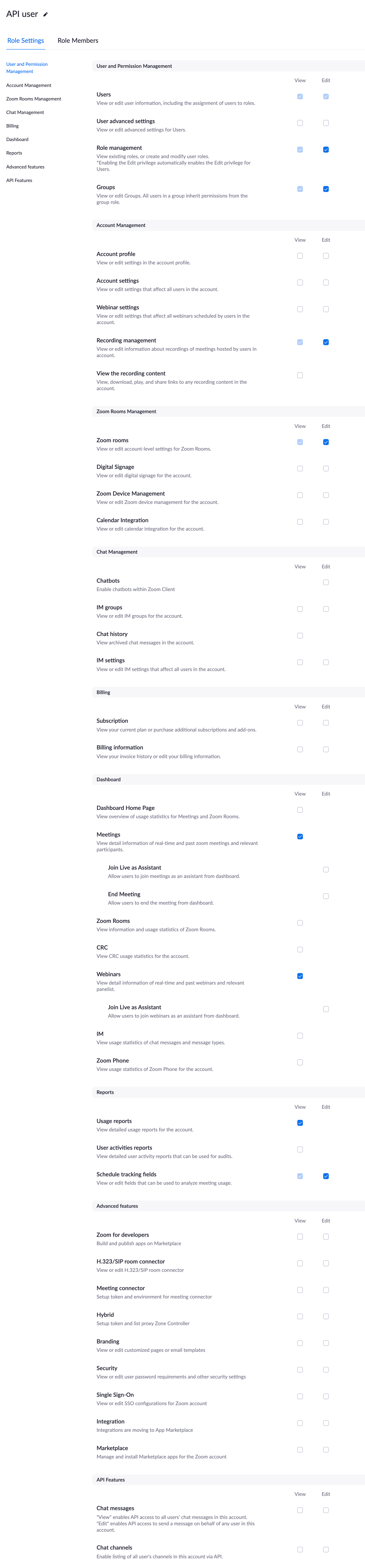
This is required as the Workato Zoom connector performs actions at an account level. This allows you to schedule meetings or webinars on behalf of other Zoom users.
# How to uninstall Workato from Zoom
WARNING
Uninstalling Zoom will stop all your active recipes. In order to install Zoom again, you will need to make an App connection on Workato.
- Firstly, you will need to disconnect all your active Zoom connections on Workato. This can be done from the App Connections page.
- Head over to your Zoom marketplace (opens new window) and log in as your account administrator.
- Select
Managein the top right hand corner and head over toInstalled Appsin the side navigation bar. - Click uninstall on Zoom to uninstall Workato from Zoom.
# List of Workato triggers and actions
Workato currently supports the following triggers and actions. Find out more details about each by clicking on the links below. You can also navigate to them through the side bar.
- New event trigger (Trigger recipes of events in Meetings, Webinars, and more)
- Event actions (Webinar, meetings, and cloud recordings)
- Registration actions (Add, approve, or list registrants for your events)
- User actions (Add, remove, or update users in your Zoom organization)
- Download cloud recording files
Last updated: 4/5/2023, 11:28:53 AM