# SAP Configuration - How to call Workato API platform from ABAP/4
This article outlines the steps needed to enable TLS 1.2 for SAP instances such that RFCs may interact directly with Workato's API platform.
# What is TLS 1.2
TLS 1.2 is currently the most widely used version of TLS and has several improvements in security compared to TLS 1.1. The enhancements in encryption of TLS 1.2 allow it to use more secure hash algorithms such as SHA-256 as well as advanced cipher suites that support authenticated encryption for other data modes. Workato blocks all incoming web traffic that is not encrypted using TLS 1.2 in an effort to ensure your data is always kept secure.
# 1. Editing your profile in RZ10
TLS 1.2 might be the standard in your SAP instance as well. Double check that your SAP instance does not already have the cipher suites below included in the profile. If so, this step may be skipped entirely.
To enable TLS 1.2 in your SAP instance, you will need to edit your instance or default profile via the SAP GUI using the transaction code RZ10. In the example below, we will be editing the Default profile. This can be substituted for an instance specific profile name as well.
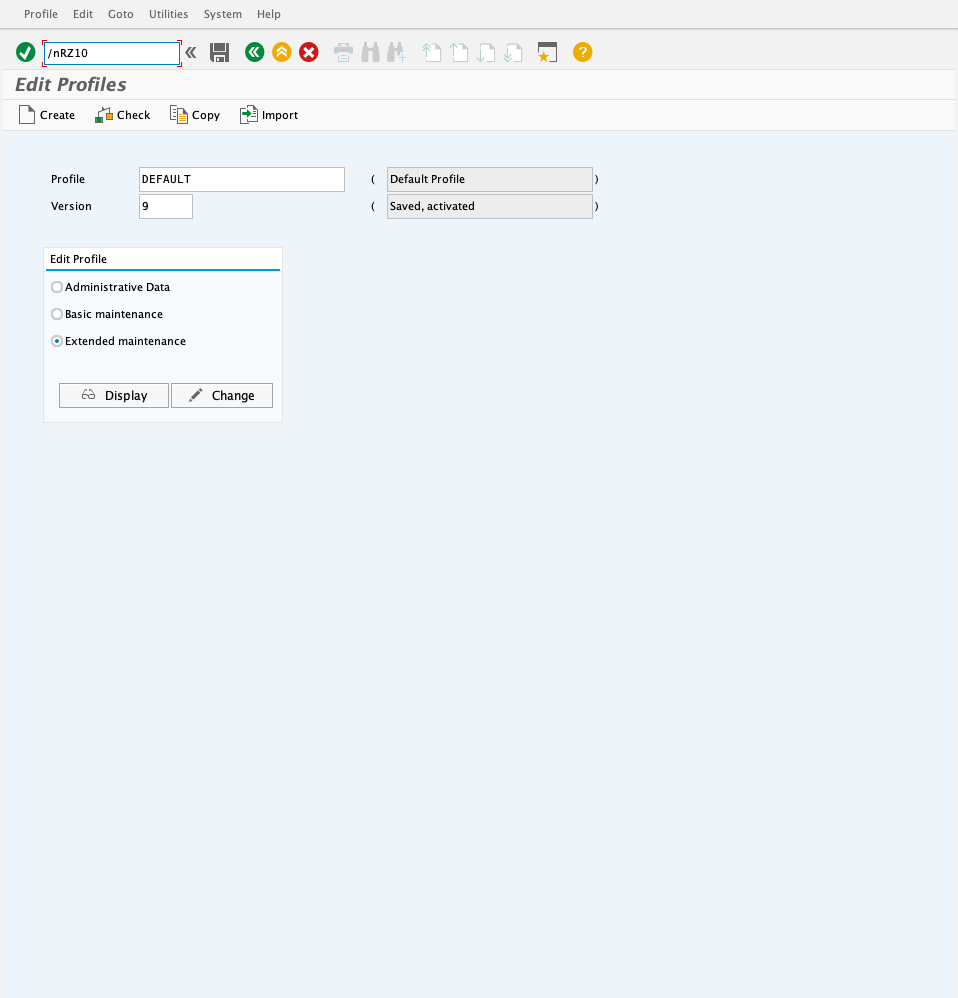
When keying in your profile, ensure you are editing the latest version of the profile and that Extended maintenance is selected. Select Change when all the input fields above have been filled in. You should be brought to the screen below.
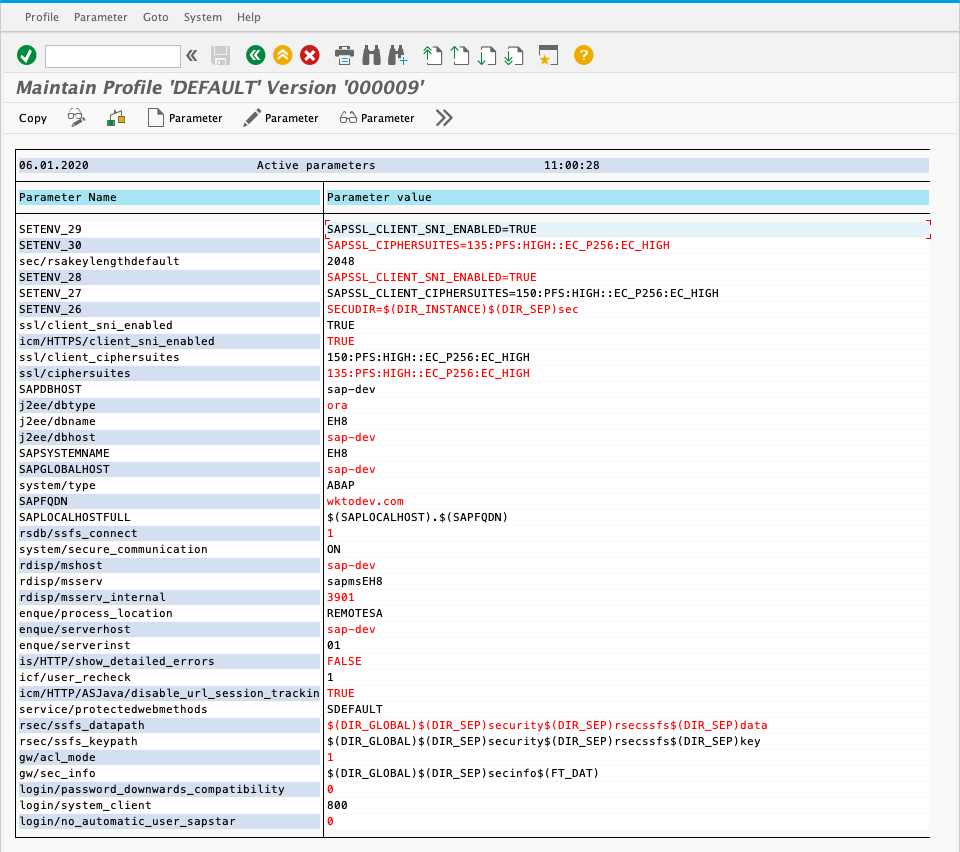
In this screen, you will need to add the following parameters to the profile. These parameters and values are tell your SAP instance which ciphers suites to use.
| Parameter Name | Parameter Value |
|---|---|
| ssl/ciphersuites | 135:PFS:HIGH::EC_P256:EC_HIGH |
| ssl/client_ciphersuites | 150:PFS:HIGH::EC_P256:EC_HIGH |
| icm/HTTPS/client_sni_enabled | TRUE |
| ssl/client_sni_enabled | TRUE |
| SETENV_26 | SECUDIR=$(DIR_INSTANCE)$(DIR_SEP)sec |
| SETENV_27 | SAPSSL_CLIENT_CIPHERSUITES=150:PFS:HIGH::EC_P256:EC_HIGH |
| SETENV_28 | SAPSSL_CLIENT_SNI_ENABLED=TRUE |
| SETENV_29 | SAPSSL_CIPHERSUITES=135:PFS:HIGH::EC_P256:EC_HIGH |
After this is done, changes to the profile will only take effect when the SAP instance is next restarted. For production SAP instances, this should occur during the next scheduled maintenance.
# 2. Adding Workato SSL certificates to trust manager
Navigate to STRUST and select SSL server Standard on the side bar. Select the System-wide folder and you should see the screen below.
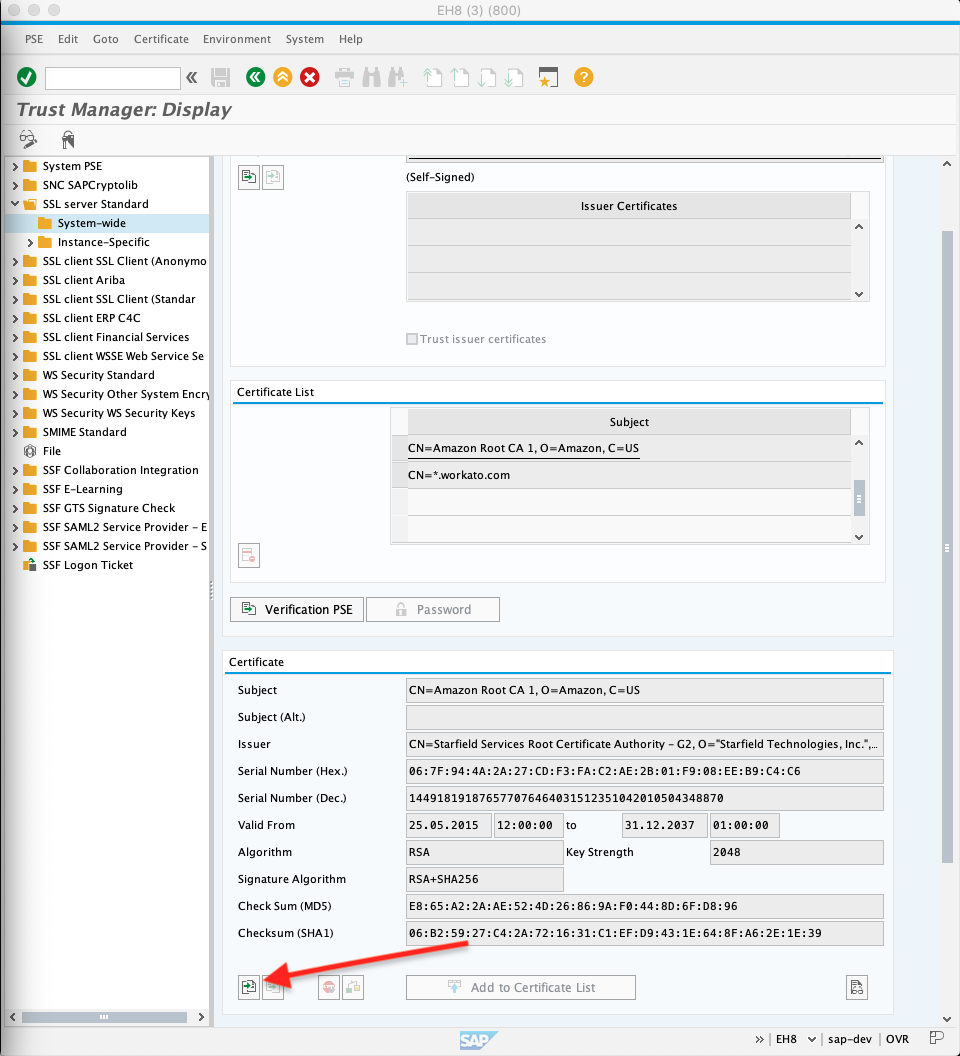
Select the import certificates button above and import the following certificate: Amazon Root CA 1 cert (opens new window). More details (opens new window).
# 3. Create an RFC Destination
Navigate to SM59 and select HTTP Connections to External Server on the side bar. RFC destinations are how you can define the domains which SAP can call in RFCs to communicate with Workato. This can be configured to be our Workato's API platform or webhook triggers in recipes. Below, we go through how to connect to Workato's API management platform.
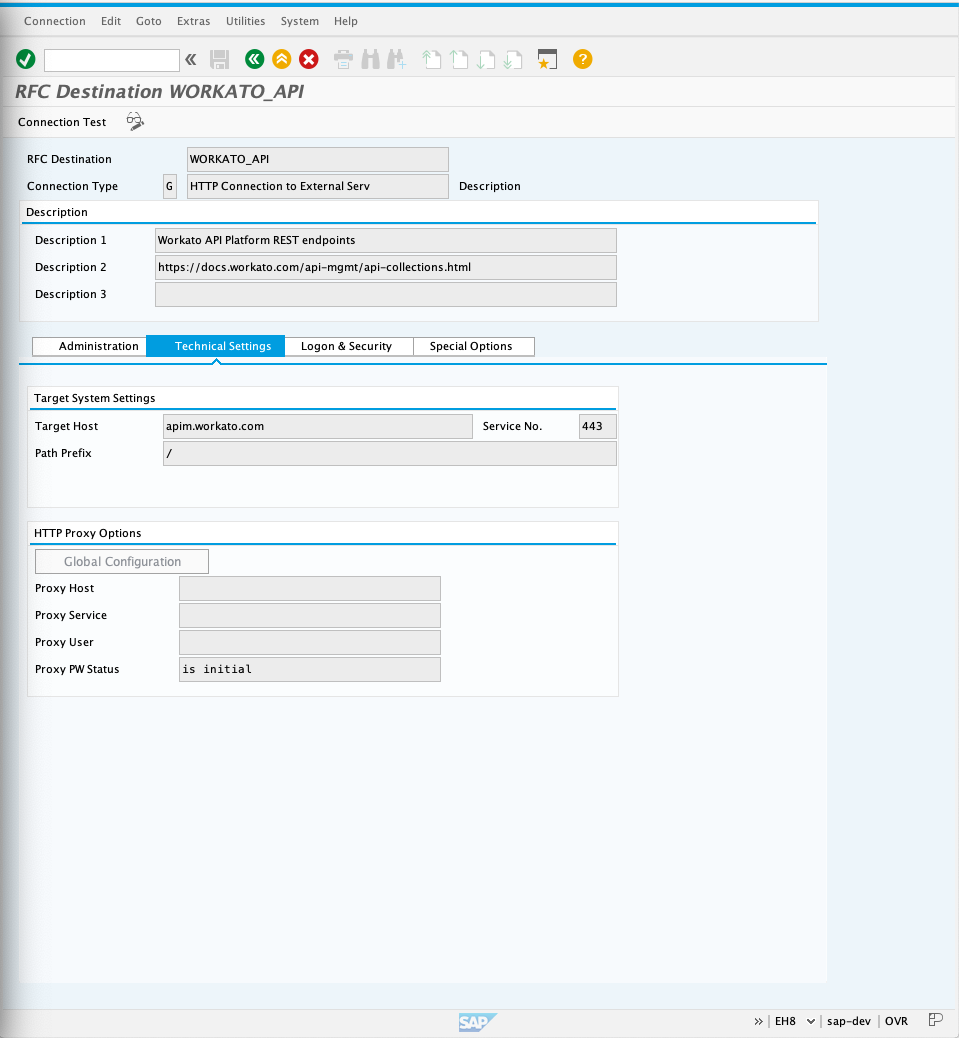
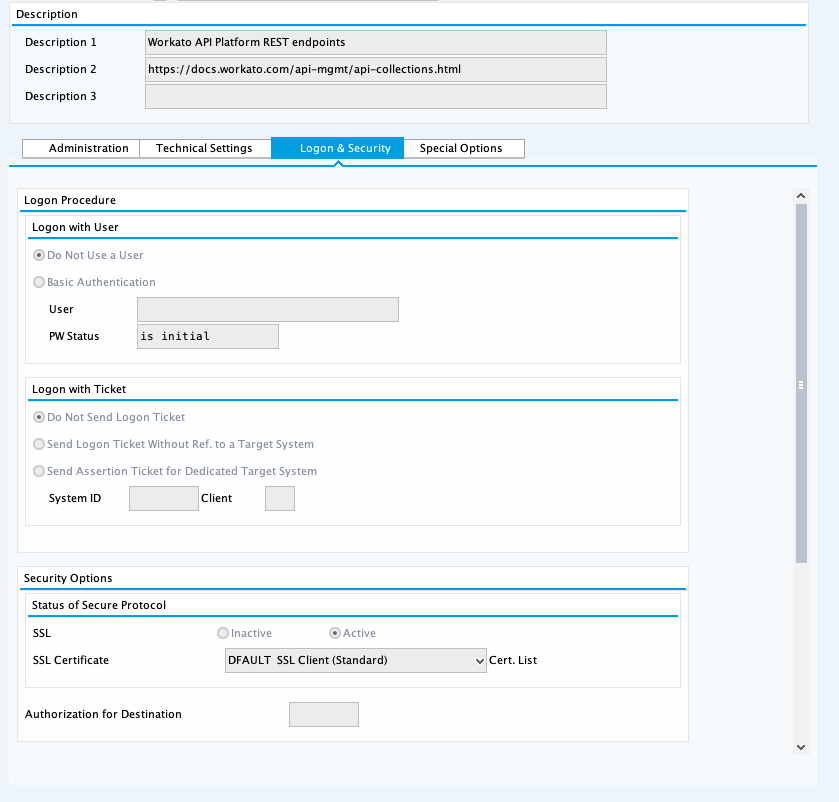
| Input field name | Recommended Value |
|---|---|
| RFC Destination | This is the name of your RFC destination which will be called in your RFCs. Remember this title for further steps. |
| Connection Type | G - HTTP Connection to External Server |
| Description | Give an accurate description of the RFC destination. Below we named it "Workato API Platform REST endpoints" and gave a link to the API management documentation. |
| Target Host | For API management, the target Host should be "apim.workato.com" |
| Service No. | The port for communication. This should be "443". |
| Path Prefix | This is appended to your target host. The exact path of the endpoint should be configured in an RFC. In this example, we have just entered a single "/" |
| Security Options (under the Logon & security tab) | SSL should be toggled to Active and SSL certificate toggled to Default SSL Client |
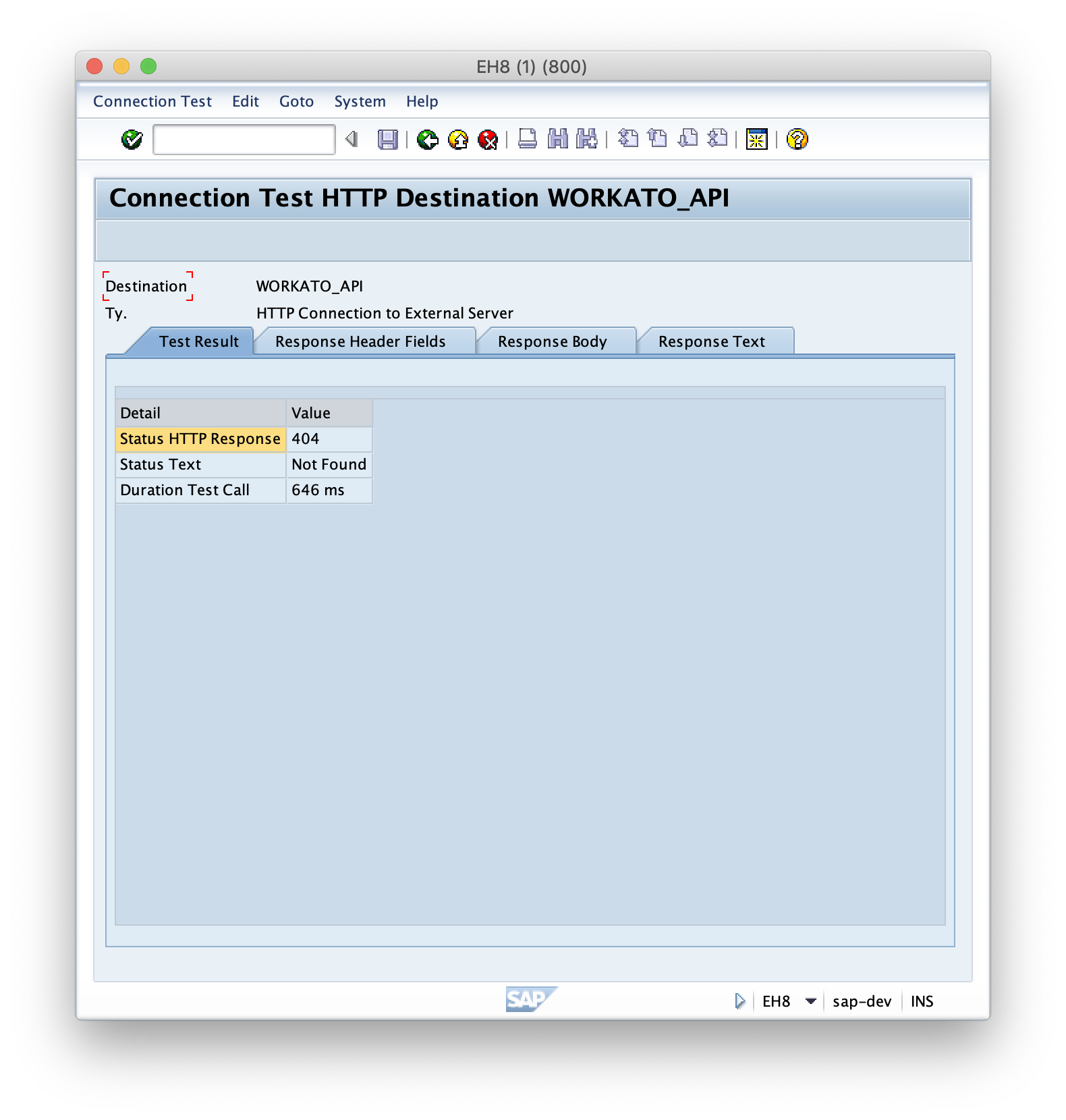
At this point, you should be able to test your connection by clicking the Connection test button in the top left corner. Receiving a 404 Not Found response is expected and should inform you that a TLS 1.2 secure connection has been established. Any other HTTP error code also means that configuration is OK.
# 4. Create an APIM endpoint
Head over to Workato's API platform under Tools and create a new API collection. API collections are collections of endpoints which correspond to a folder which contains API recipes. With this, RFC's in SAP would be able to call and trigger recipes in Workato directly. Find out more about configuring Workato's API platform here.
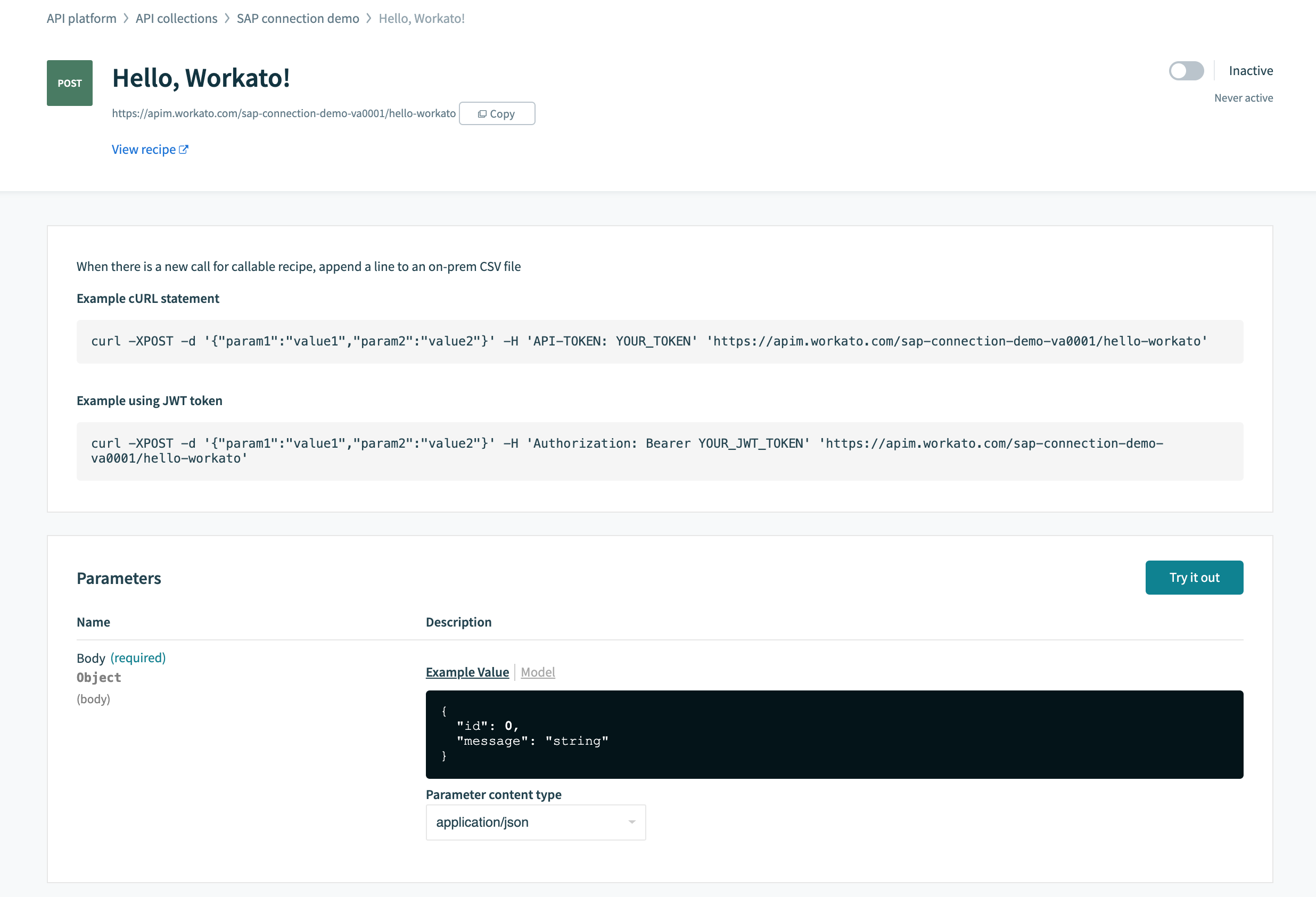
In this example, we have named the collection sap-connection-demo with a version A0001. Inside, we have linked it to a folder with a single recipe with the name Hello, Workato!. This has resulted with collection with a single endpoint https://apim.workato.com/sap-connection-demo-va0001/hello-workato and we have edited the endpoint to accept POST requests. In the following steps, we will be using this information to create an RFC to connect to this endpoint.
The recipe can be found here (opens new window). Feel free to install and modify it. The payload we configure later on in the
# 5. Creating your call to Workato via an RFC
Below we have sample ABAP code which showcases how you can connect to Workato in a sample RFC - ZWORKATO_API_ENDPOINT_DEMO.
*&---------------------------------------------------------------------*
*& Report ZWORKATO_API_ENDPOINT_DEMO
*&---------------------------------------------------------------------*
*& Author: Anthony Ananich
*&
*&---------------------------------------------------------------------*
REPORT zworkato_api_endpoint_demo.
DATA: lo_http_client TYPE REF TO if_http_client,
      lo_rest_client TYPE REF TO cl_rest_http_client,
      lv_url         TYPE        string,
      lv_body        TYPE        string,
      exref          TYPE REF TO cx_root,
      msgtxt         TYPE string.
cl_http_client=>create_by_destination(
  EXPORTING
    destination              = 'WORKATO_API'
* This should be configured to the name of your RFC destination made earlier.
  IMPORTING
    client                   = lo_http_client
  EXCEPTIONS
    argument_not_found       = 1
    destination_not_found    = 2
    destination_no_authority = 3
    plugin_not_active        = 4
    internal_error           = 5
    OTHERS                   = 6
).
* If you are using cl_http_client=>create_by_url use this code to supress and pass your
* HTTP basic authenication
*  lo_http_client->propertytype_logon_popup = lo_http_client->co_disabled.
*  DATA l_username TYPE string.
*  DATA l_password TYPE string.
*  l_username = 'user'.
*  l_password = 'password'.
*  CALL METHOD lo_http_client->authenticate
*    EXPORTING
*      username = l_username
*      password = l_password.
CREATE OBJECT lo_rest_client
  EXPORTING
    io_http_client = lo_http_client.
lo_http_client->request->set_version( if_http_request=>co_protocol_version_1_0 ).
IF lo_http_client IS BOUND AND lo_rest_client IS BOUND.
  lv_url = 'sap-connection-demo-va0001/hello-workato'.
  cl_http_utility=>set_request_uri(
    EXPORTING
      request = lo_http_client->request    " HTTP Framework (iHTTP) HTTP Request
      uri     = lv_url                     " URI String (in the Form of /path?query-string)
  ).
* ABAP to JSON
  TYPES: BEGIN OF ty_json_req,
           id      TYPE i,
           message TYPE string,
         END OF ty_json_req.
  DATA: json_req TYPE ty_json_req.
  json_req-id = 25252525.
  json_req-message = 'Hello, Workato!'.
  DATA lr_json_serializer TYPE REF TO cl_trex_json_serializer.
  lv_body = /ui2/cl_json=>serialize( data = json_req ).
* Converted JSON should look like this
* lv_body = '{ "id":25252525, "message":"Hello, Workato!"}'.
  DATA: lo_json        TYPE REF TO cl_clb_parse_json,
        lo_response    TYPE REF TO if_rest_entity,
        lo_request     TYPE REF TO if_rest_entity,
        lv_reason      TYPE  string,
        response       TYPE  string,
        content_length TYPE  string,
        location       TYPE  string,
        content_type   TYPE  string,
        lv_rcode       TYPE  i.
* Set Payload or body ( JSON or XML)
  lo_request = lo_rest_client->if_rest_client~create_request_entity( ).
  lo_request->set_content_type( iv_media_type = if_rest_media_type=>gc_appl_json ).
  lo_request->set_string_data( lv_body ).
  CALL METHOD lo_rest_client->if_rest_client~set_request_header
    EXPORTING
      iv_name  = 'api-token'
      iv_value = '{YOUR WORKATO api-token HERE}'.
* Provide the api-token to your own API platform.
  TRY.
* POST
      lo_rest_client->if_rest_resource~post( lo_request ).
* Collect response
      lo_response = lo_rest_client->if_rest_client~get_response_entity( ).
      lv_rcode = lo_response->get_header_field( '~status_code' ).
      lv_reason = lo_response->get_header_field( '~status_reason' ).
      content_length = lo_response->get_header_field( 'content-length' ).
      location = lo_response->get_header_field( 'location' ).
      content_type = lo_response->get_header_field( 'content-type' ).
      response = lo_response->get_string_data( ).
* JSON to ABAP
      DATA lr_json_deserializer TYPE REF TO cl_trex_json_deserializer.
      TYPES: BEGIN OF ty_json_res,
               job_id  TYPE i,
               job_url TYPE string,
             END OF ty_json_res.
      DATA: json_res TYPE ty_json_res.
      /ui2/cl_json=>deserialize( EXPORTING json = response pretty_name = /ui2/cl_json=>pretty_mode-camel_case CHANGING data = json_res ).
      WRITE:/ json_res-job_url.
    CATCH cx_rest_client_exception INTO exref.
      msgtxt = exref->get_text( ).
      CONCATENATE '[ERROR]' msgtxt INTO msgtxt SEPARATED BY space.
      WRITE:/ msgtxt.
  ENDTRY.
ENDIF.
With this ABAP code, you should be able to successfully call and trigger a job in your own Workato workspace using our API platform and an RFC in SAP.
Last updated: 11/3/2023, 4:18:33 PM