# Using Amazon Web Services Secrets Manager in Connections
Video guide: Set up connections safely with AWS secrets manager
In this guide, we'll show you how to use secrets from your Amazon Web Services (AWS) Secrets Manager vault to configure Workato connections.
# Prerequisites
To complete the steps in this guide, you'll need:
The following in Workato:
- An account with a successful AWS Secrets Manager workspace-level or AWS Secrets Manager project-level connection
- A user role with Create and Edit Connections privileges
In Amazon Web Services (AWS):
- An existing secret. Refer to Amazon's documentation (opens new window) for info on creating a secret.
- Permissions that allow you to view secrets in AWS Secrets Manager
# Step 1: Retrieve The Secret's Details From AWS
Sign in to your AWS Management Console and open the Secrets Manager console (opens new window).
In the navigation pane, click Secrets.
Click the secret you want to use in Workato.
In the Secret details section, locate the Secret name and Secret ARN:
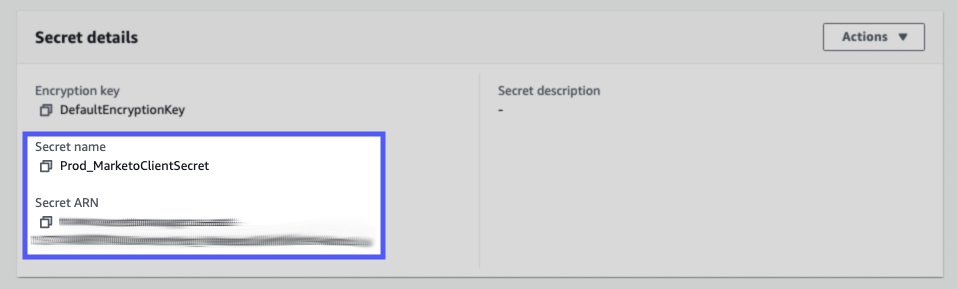
Keep this page open - you'll need it to complete the next step.
# Step 2: Configure A Workato Connection
In your Workato account, create a new connection or open the configuration page for an existing connection.
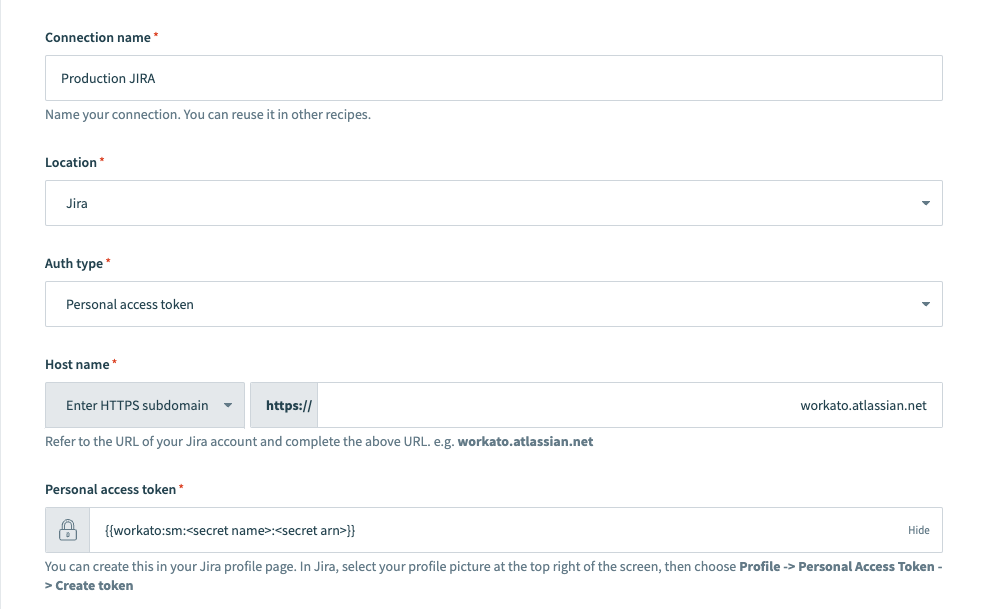
Secrets in Workato connection credentials follow this syntax:
{{workato:sm:<key name>:<secret ARN>}}
For example:
{{workato:sm:prod.jira.secret.key:arn:aws:secretsmanager:us-east-1:137149879143:secret:prod-jira-credentials-FsmeTs}}
In the connection's configuration page, paste this entire value into the appropriate field. The image below, for example, shows a secret being used as the Custom Service client secret value in a JIRA connection:
# Step 3: Complete your Connection Setup
Select Connect and verify that this connection is working fine.
Last updated: 8/7/2023, 7:58:28 PM