# Run On-prem Agent
An on-prem agent requires an active connection between the agent running within your network and Workato's On-prem group dashboard (opens new window).
You may occasionally need to temporarily disable this connection. For example, restarting, or upgrading the on-prem agent.
# Disable on-prem agent
To do so, simply select Disable agent.
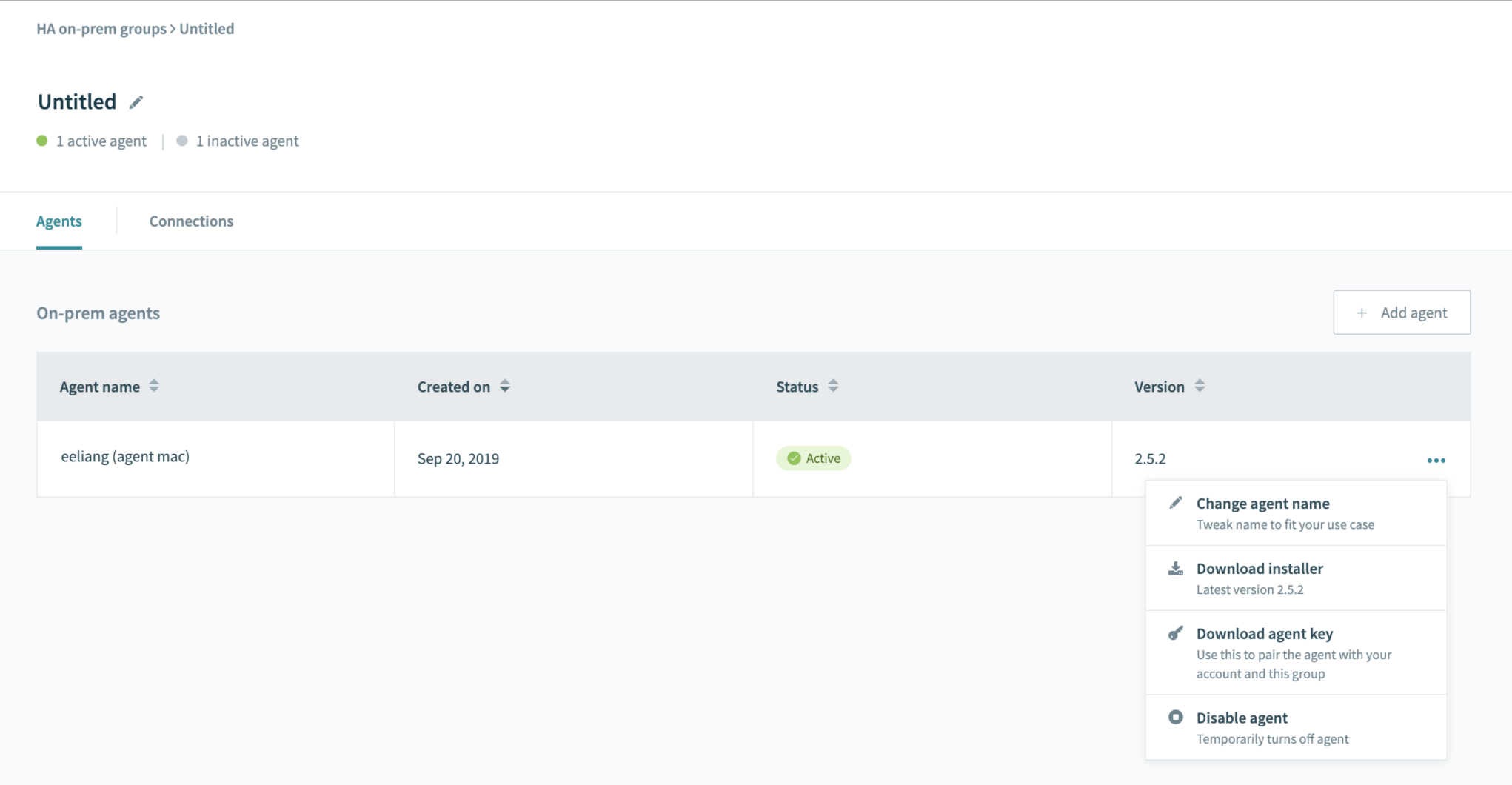 Temporarily disable on-prem agent
# Re-establish connection with on-prem agent
To reconnect your on-prem agent to Workato, you have to do the following steps. Please follow the instructions according to your network's operating system.
# Running on Linux 64-bit and Mac OS X
If your on-prem agent is installed in a Linux or Mac OS, run the on-prem agent using the following bash script:
sh <INSTALL_HOME>/bin/run.sh
If you are accessing the server through SSH and want to let the agent run in the background independent of your shell session, you can add the nohup command (&) at the end. You can also include a > file_name command to ensure that the outputs are logged.
sh <INSTALL_HOME>/bin/run.sh > opa_output.txt &
Level of details of the OPA logs depend on your configuration. Learn more.
# Running on Windows 64-bit
For on-prem agents installed in Windows, run the agent as a Windows console application or as a Windows Service.
Run the on-prem agent in console mode by launching Workato → Run Agent (console) in the Start Menu.
Alternatively, you can use the Run Agent (console) shortcut to ensure the agent is successfully connecting to Workato using the provided certificate.
# Using Windows Service
The installer automatically registers an agent (WorkatoAgent) as a Windows service . However, the agent does not start automatically. Navigate to the service configuration (Control Panel → System and Security → Administrative Tools → Services → WorkatoAgent) to configure service auto-start.
# Browsing log files
When the on-prem agent is running as a Windows service, log files can be found at: %SYSTEMROOT%\System32\LogFiles\Workato. There's also a shortcut to the Workato log directory in the Workato group found in the Start Menu.
Level of details of the OPA logs depend on your configuration. Learn more.
# Changing save location for log files
To change the save location for log files, launch Workato → Service Wrapper Configuration in the Start Menu. Navigate to the Logging tab where you can modify Log path.
# On-prem agent is reconnected
To finish re-establishing the connection, go to the On-prem group dashboard and connect to your on-prem agent.
| Step | Description |
|---|---|
| Enable agent | From the Workato On-prem group dashboard, select Enable agent.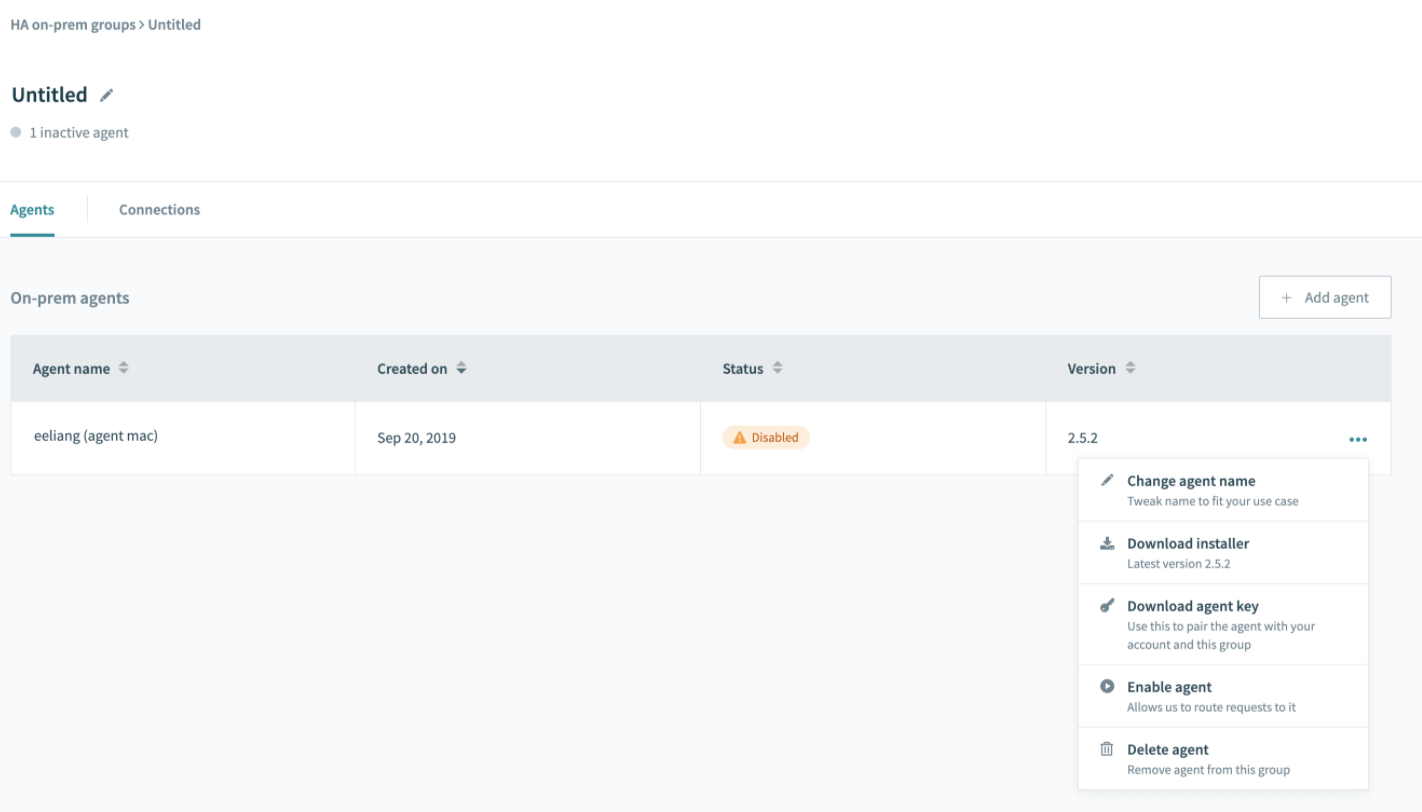 |
| Connection established | Workato will send a request to your on-prem agent to establish a connection. If successful, the status will return to Active.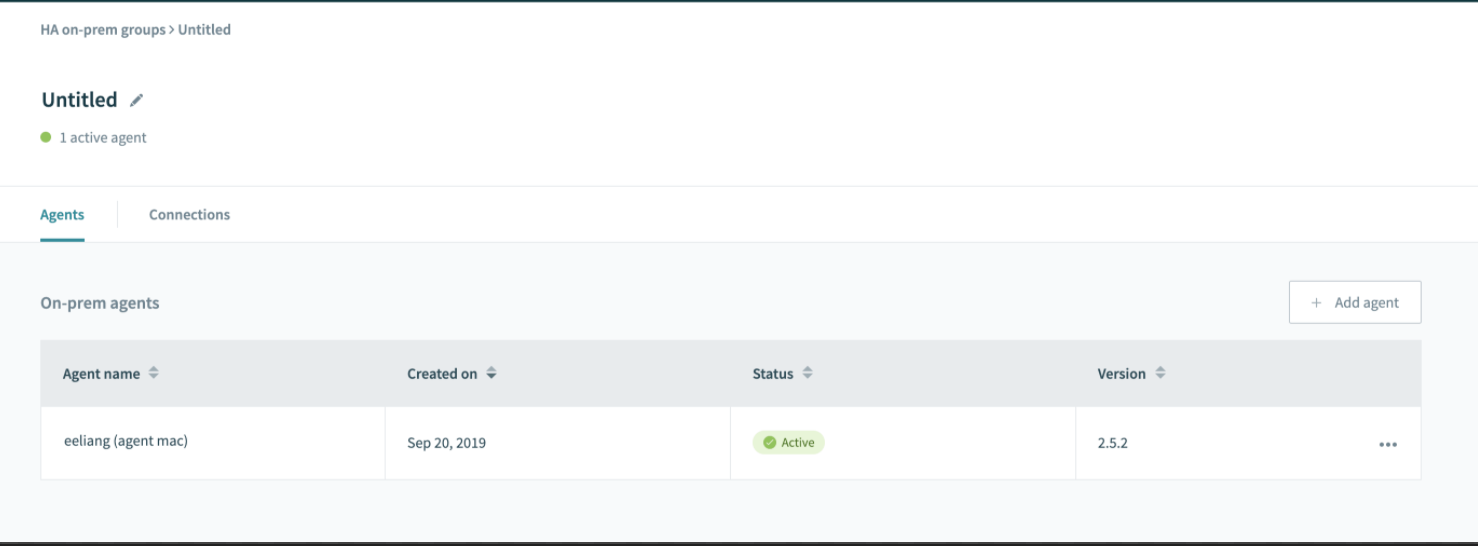 |
Last updated: 3/29/2023, 2:00:59 PM