# Apply a custom OAuth profile to customer accounts
PREREQUISITES
You must create a custom OAuth profile for your application before you can apply a profile to a customer account.
After you create a custom OAuth profile and register an application in your Admin account, you can apply this OAuth profile to specific customer accounts. When applied at the Admin level, this profile replaces the OAuth profile for the same application by default in customer accounts.
# OAuth assignment process
You must apply an OAuth profile to each individual customer account.
To apply an OAuth profile:
Navigate to the Admin console > Customer settings.
Select the customer account you plan to assign an OAuth profile to.
Navigate to the customer's Settings > Custom OAuth profiles interface.
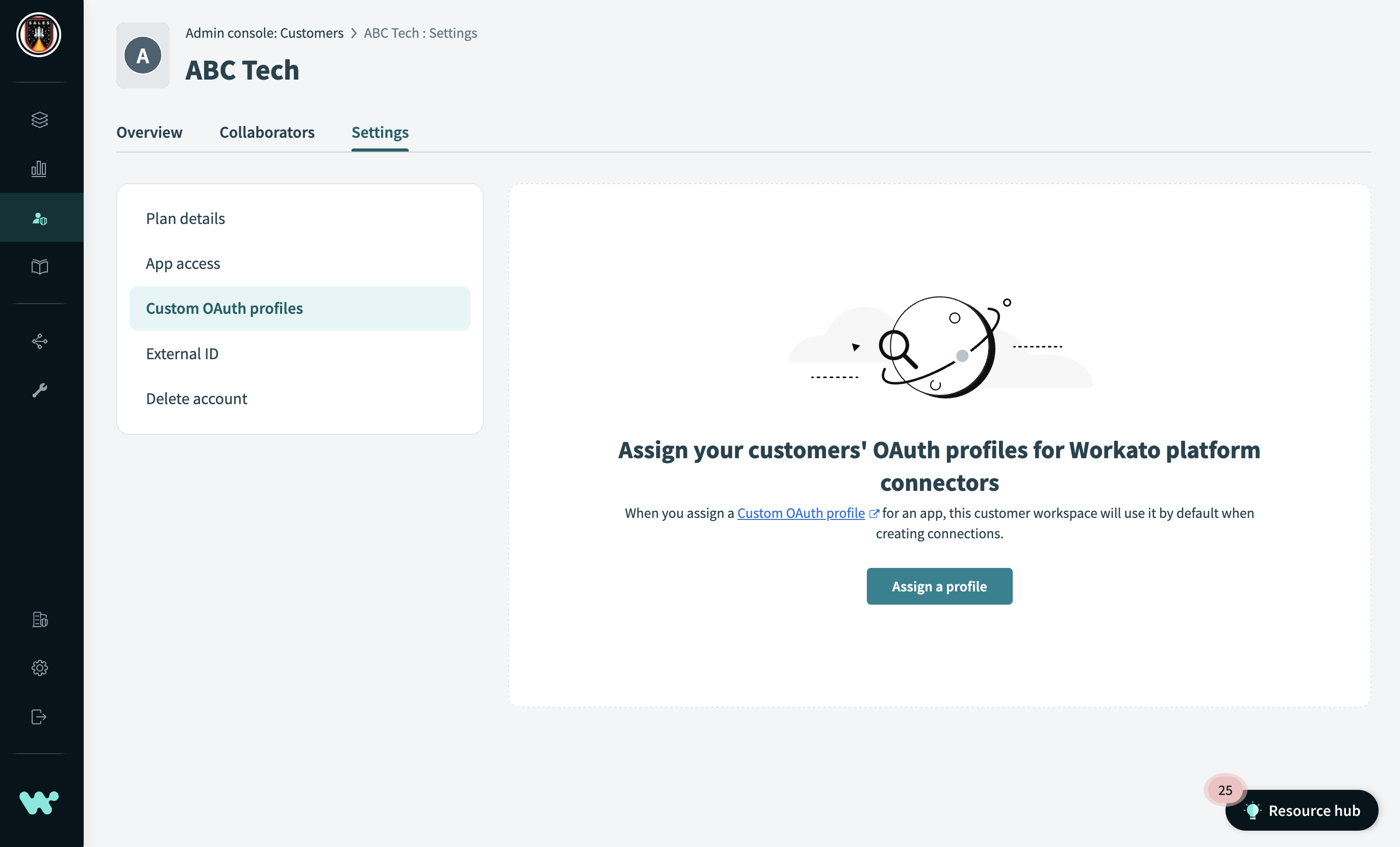 Custom OAuth profiles interface
Click Assign a profile.
In the Assign an OAuth profile interface select an app and profile to assign to the customer account.
You can only have one OAuth profile for each application.
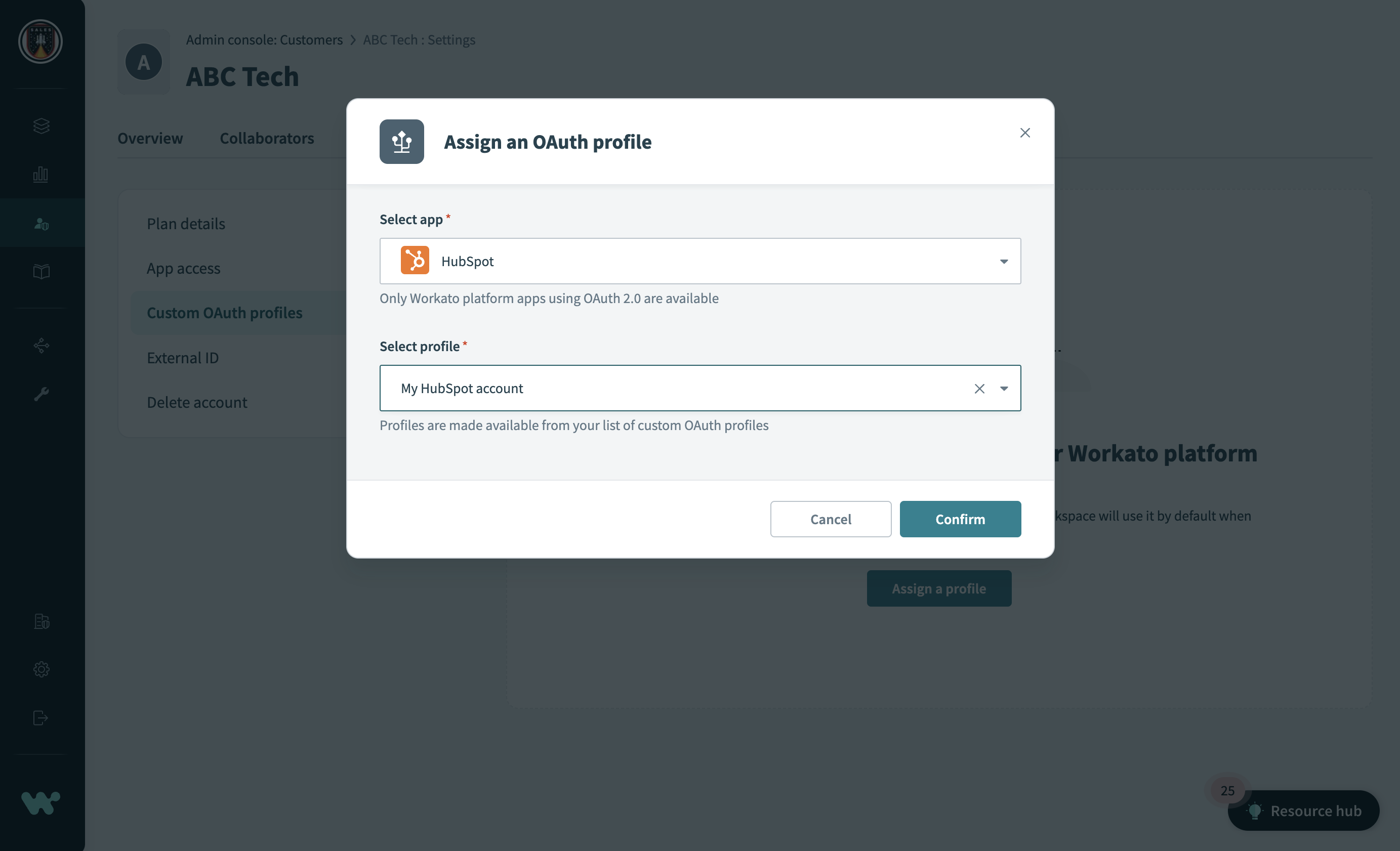 Assign a profile
Click Confirm.
# Important considerations
After you share a custom OAuth profile with a customer account, that profile is automatically adopted for that connector and the customer cannot switch to another connector.
When a user in a customer account makes a connection to an app that has a shared custom OAuth profile from the admin account, the Custom OAuth profile dropdown is disabled. For example, in the following screenshot, the Custom OAuth field is grayed out.
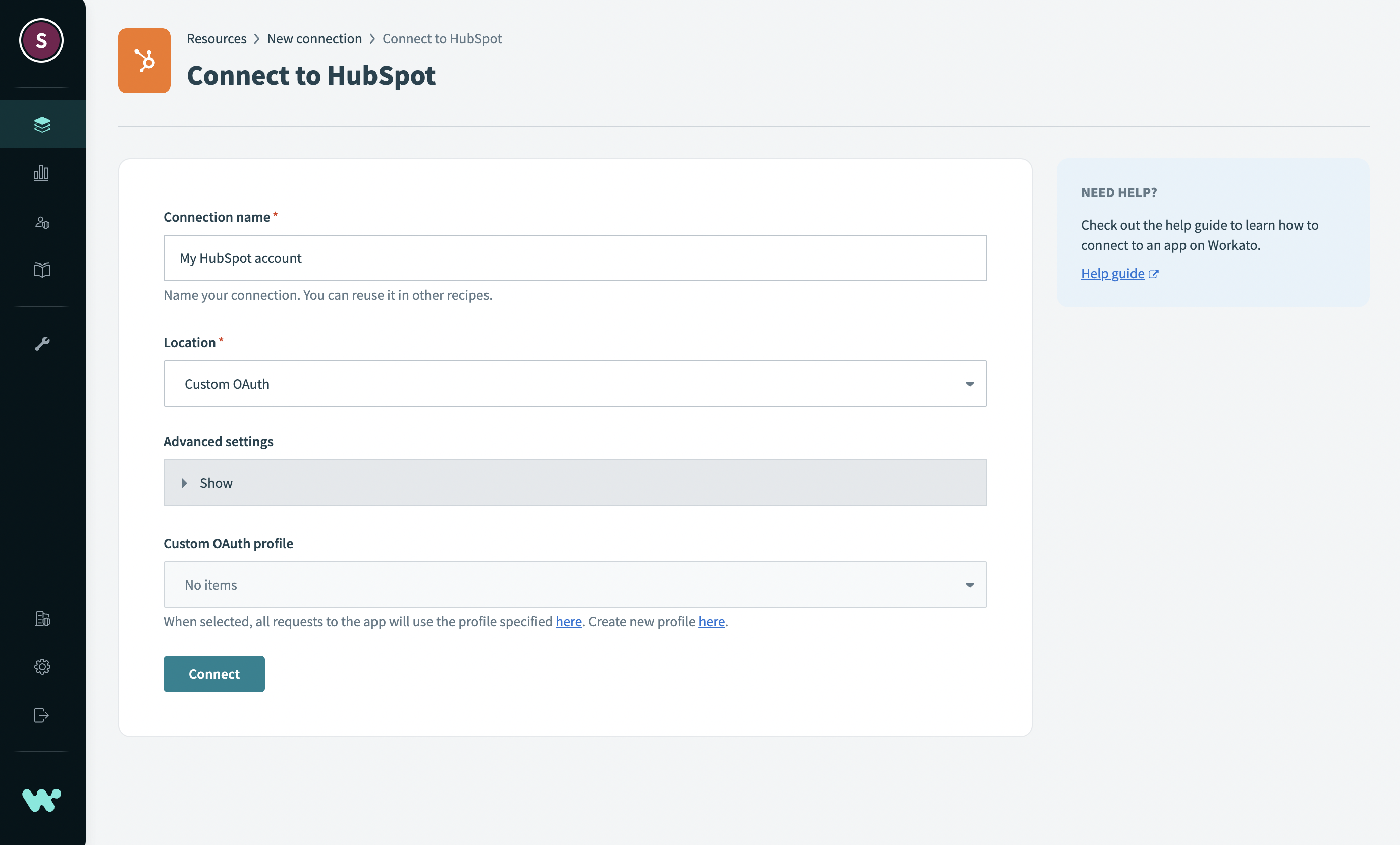 Disabled custom OAuth field
HIDE CUSTOM OAUTH PROFILE FIELD
You can hide the Custom OAuth profile field if you do not want it to be visible to customers. You can hide this field through the customer account plan. This field is only visible if the customer account plan includes access to the Custom OAuth profiles feature. If an admin sets a custom OAuth profile for this customer, the customer can use it even if they do not have access to the Custom OAuth feature.
You can only set one custom OAuth profile for an application for each customer account. If you want to change to a different OAuth profile and have active connections in that customer account, Workato displays the following warning message.
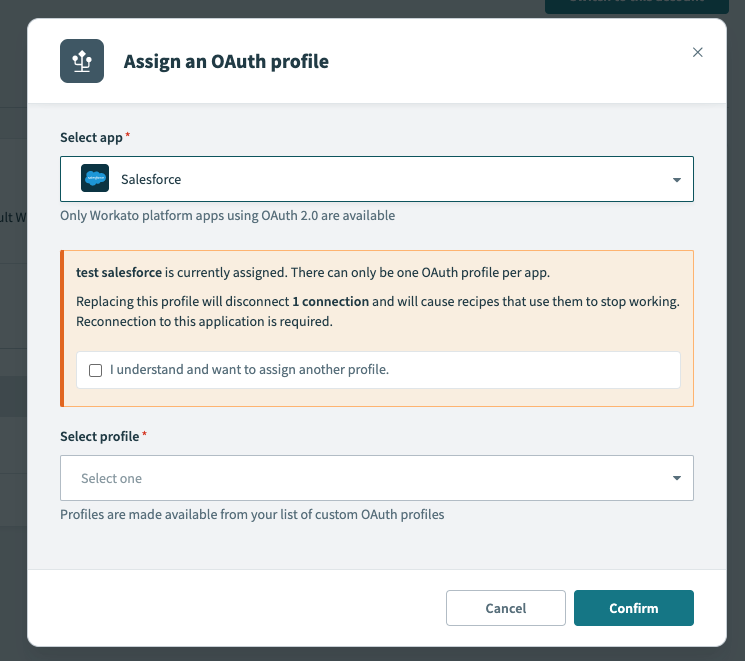 Warning message
Workato displays a similar warning when you delete an OAuth profile from the customer account.
# Example user flow
- An Embedded partner registers a Hubspot custom OAuth profile in the Admin account.
- The partner enables the profile in the Admin console > Customers > Settings > Custom OAuth profiles.
- Anyone in that customer account that creates a connection to Hubspot immediately uses the custom OAuth profile created at the partner account level when they try to connect to Hubspot. The customer cannot select anything in the Custom OAuth profile field.
Last updated: 1/27/2023, 5:15:22 AM